VANTARO
← Home
VANTARO HELP CENTRE

How can we help?

Practical guidance for athletes, coaches, specialists, parents and administrators.

01

Choose the correct operating model first

A parent’s permissions depend on the selected plan. This distinction is essential during setup.

CLUB PLANS

Micro, Academy and Pro / Multi-Sport

The organisation creates the environment, adds athletes and assigns coaches, specialists and parents. A parent does not administer the application; they receive access to their child and the information authorised by the organisation.

The organisation is the administrator
INDIVIDUAL PLAN

Parent PRO

For a child training independently outside one club. The parent creates the child profile, administers that environment and may invite private coaches and specialists.

The parent is the administrator
02

Getting started

The first steps depend on who administers the athlete’s environment.

  1. 1In a club plan, the organisation administrator creates groups and athlete accounts.
  2. 2Coaches, specialists, athletes and parents accept invitations sent by the administrator.
  3. 3In Parent PRO, the parent creates the child profile and invites the private support team.
  4. 4After permissions are set, add goals, baseline details and optionally connect Polar Flow.
03STEP-BY-STEP USER GUIDE

Using the application from the first sign-in

The chapters below walk through the key VANTARO screens. Images show the real application, and every chapter can later become a separate scene in the tutorial video.

01 / STEP-BY-STEP USER GUIDE

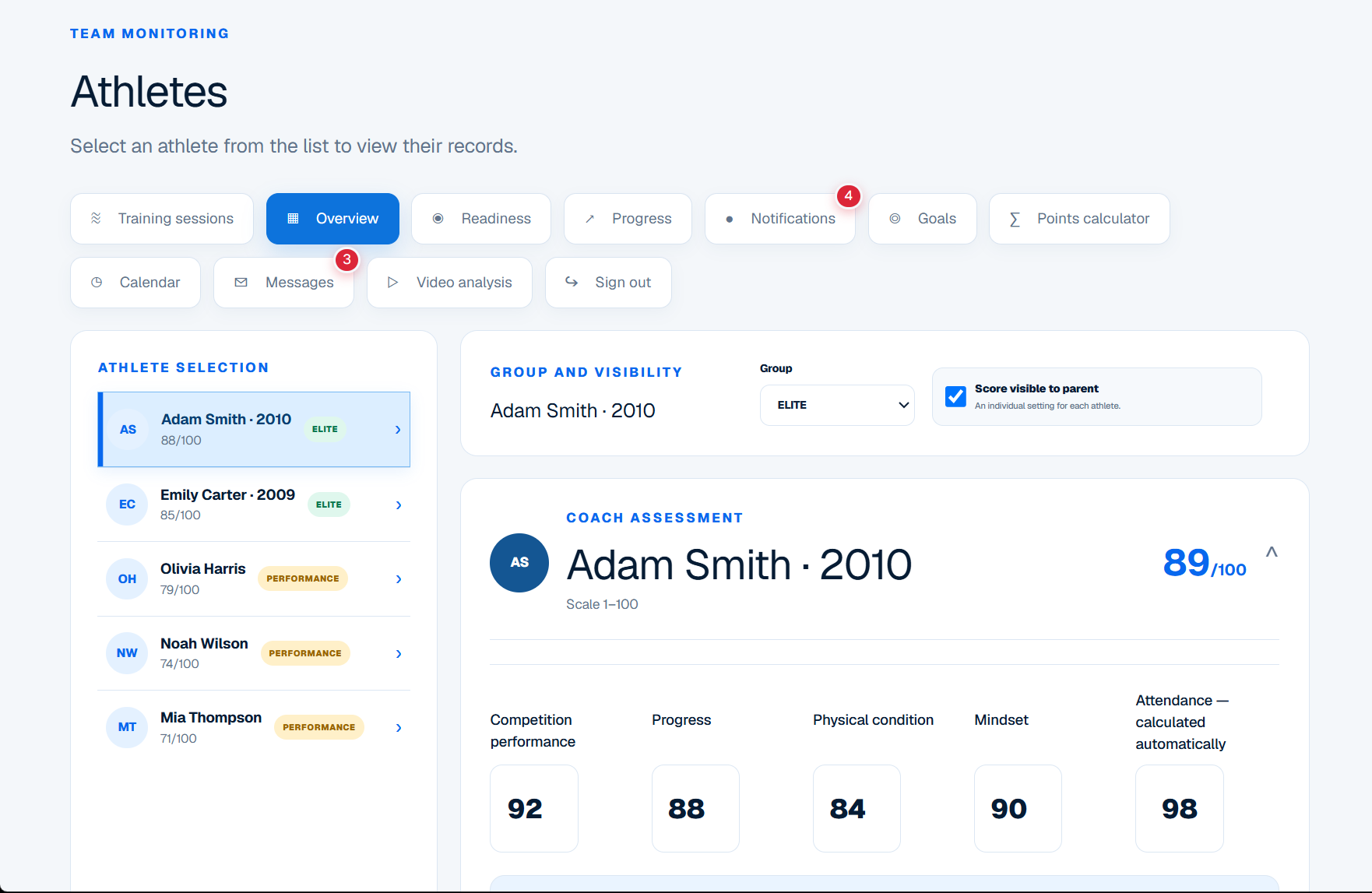
1. First sign-in and athlete selection

After signing in, confirm your role, assigned athletes and data visibility.

  1. 1Sign in with the email address that received the invitation.
  2. 2Confirm the role and organisation shown in the dashboard header.
  3. 3Select an athlete from the list; the active profile is highlighted.
  4. 4Check the group, year of birth and parent score visibility setting.
  5. 5If the correct athlete is missing, ask the administrator to fix the assignment instead of creating another account.
Application view: 1. First sign-in and athlete selection: setup
VANTAROApplication view: 1. First sign-in and athlete selection
02 / STEP-BY-STEP USER GUIDE

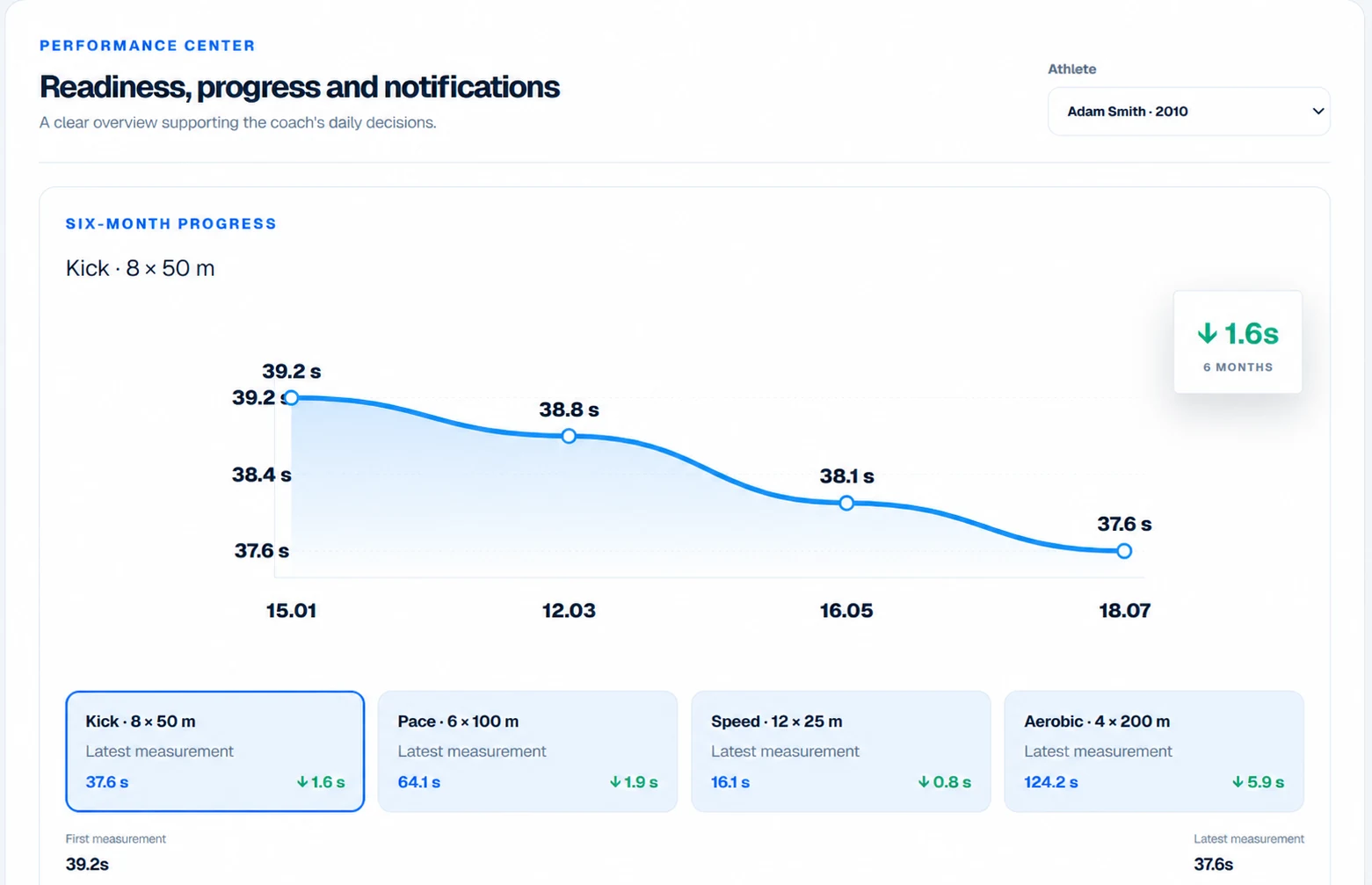
2. Progress analysis

The progress panel shows change over time and helps confirm whether the plan is moving towards the goal.

  1. 1Select the athlete and the event or training parameter.
  2. 2Choose the correct date range and compare equivalent measurements.
  3. 3Read the chart trend and the difference between the first and latest result.
  4. 4Compare the result with the season goal and current preparation phase.
  5. 5Add a coach note when the change needs to be explained to the athlete or parent.
Application view: 2. Progress analysis: progress
VANTAROApplication view: 2. Progress analysis
03 / STEP-BY-STEP USER GUIDE

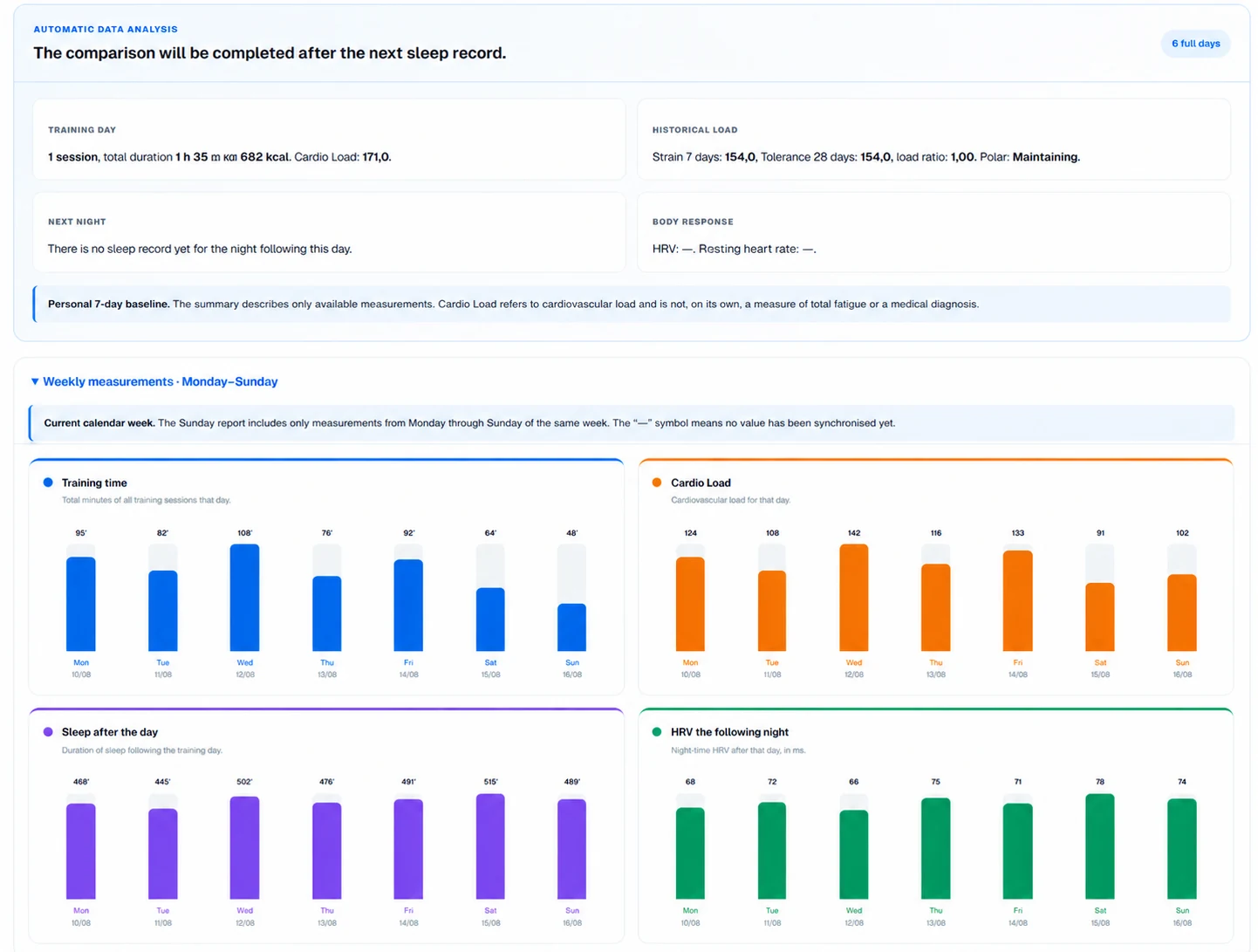
3. Polar Flow and weekly monitoring

The weekly view combines training, load, sleep and HRV.

  1. 1Confirm that Polar Flow is connected and check the latest synchronisation time.
  2. 2Compare training duration and Cardio Load across the week.
  3. 3Review sleep after training and overnight HRV; a missing value means missing data, not a poor result.
  4. 4Check the week-completeness and personal-baseline messages.
  5. 5Base training decisions on the trend, athlete feedback and the training-plan context.
Application view: 3. Polar Flow and weekly monitoring: monitoring
VANTAROApplication view: 3. Polar Flow and weekly monitoring
04 / STEP-BY-STEP USER GUIDE

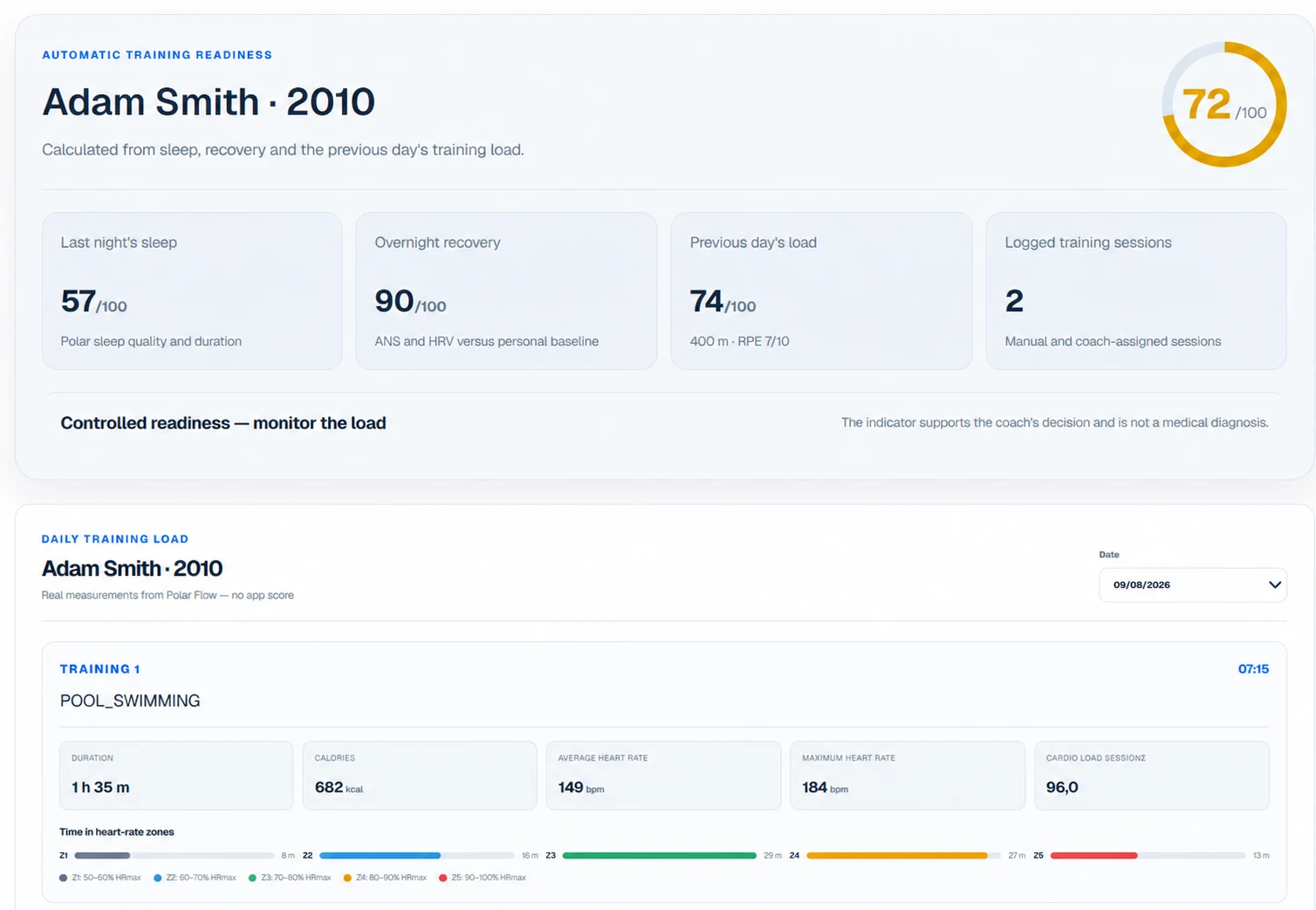
4. Coach dashboard — readiness and load

The coach sees readiness, last night’s sleep, recovery and the previous day’s load.

  1. 1Select the athlete and analysis date.
  2. 2Review the readiness score and its four component cards.
  3. 3Open the daily training load and time in heart-rate zones.
  4. 4When a value differs from baseline, check the source data and speak with the athlete.
  5. 5Record the decision: follow the plan, reduce load or consult a specialist.
Application view: 4. Coach dashboard — readiness and load: coach
VANTAROApplication view: 4. Coach dashboard — readiness and load
05 / STEP-BY-STEP USER GUIDE

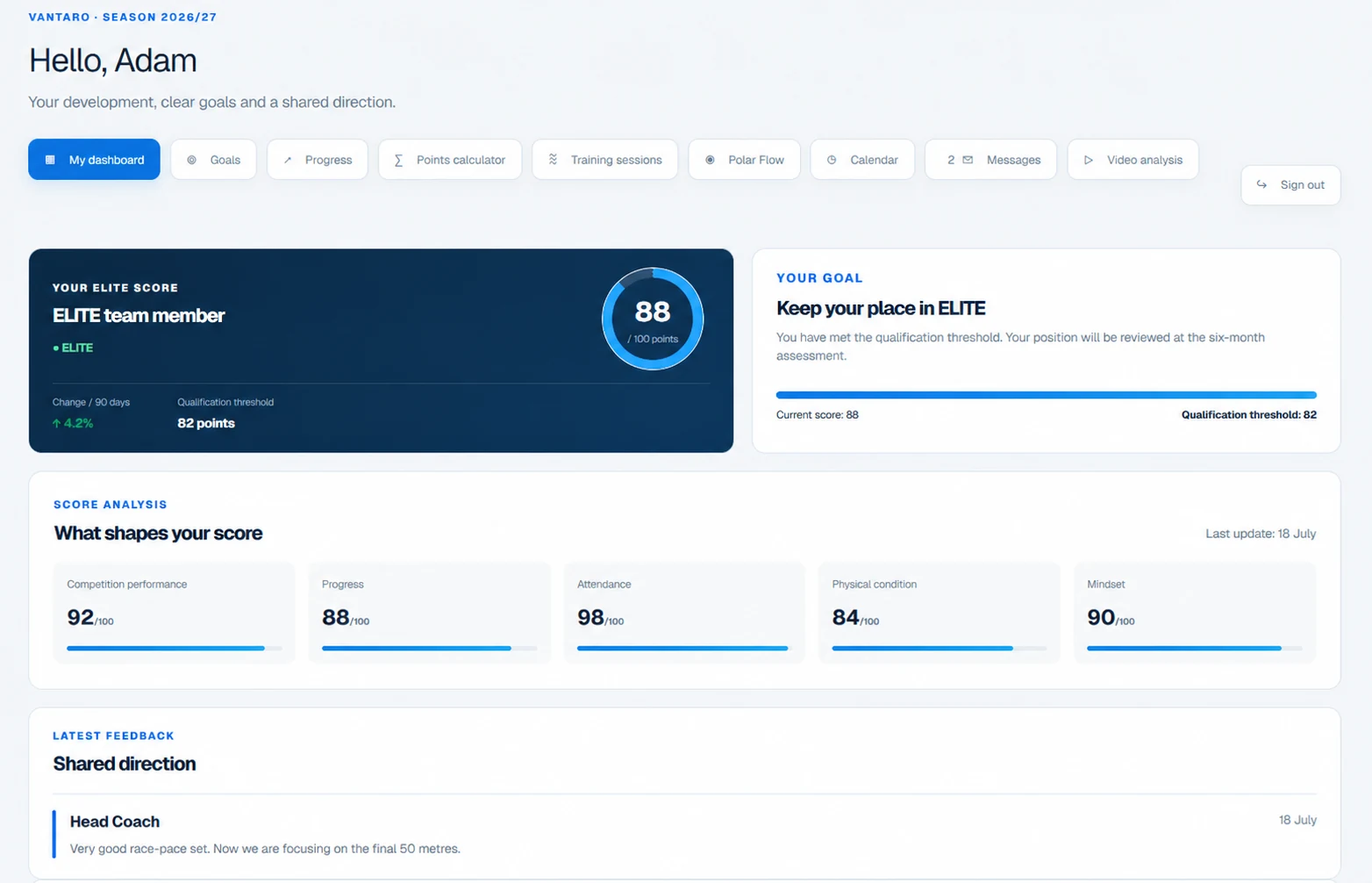
5. Athlete dashboard — plan, goal and feedback

The athlete uses the dashboard to understand today’s work and how it contributes to development.

  1. 1Start on My dashboard and review the current goal and group position.
  2. 2Open Calendar and select the next training session or task.
  3. 3After training, complete the required details, RPE and wellbeing entry.
  4. 4Read the coach’s feedback and check new messages.
  5. 5Follow the trend rather than judging the whole season from one day.
Application view: 5. Athlete dashboard — plan, goal and feedback: athlete
VANTAROApplication view: 5. Athlete dashboard — plan, goal and feedback
06 / STEP-BY-STEP USER GUIDE

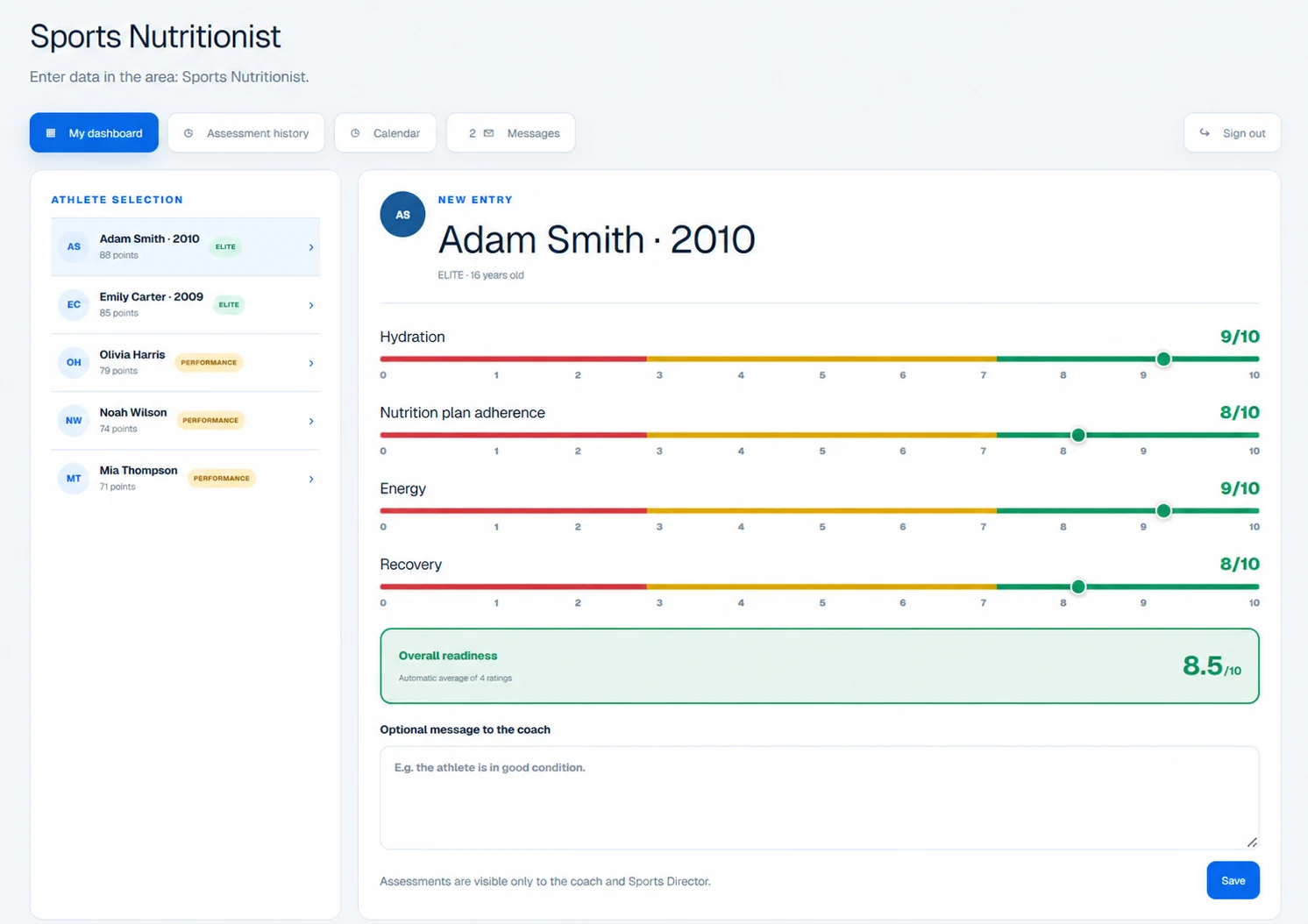
6. Specialist dashboard — assessment and recommendations

A specialist assesses the athlete within their area and gives the coach a clear recommendation.

  1. 1Select an athlete assigned to your role.
  2. 2Open a new assessment and complete every required scale.
  3. 3Add a concise note describing the observation and next action.
  4. 4Before saving, confirm the date and athlete profile.
  5. 5Contact the coach directly when action is required; the application does not replace a medical diagnosis.
Application view: 6. Specialist dashboard — assessment and recommendations: specialist
VANTAROApplication view: 6. Specialist dashboard — assessment and recommendations
07 / STEP-BY-STEP USER GUIDE

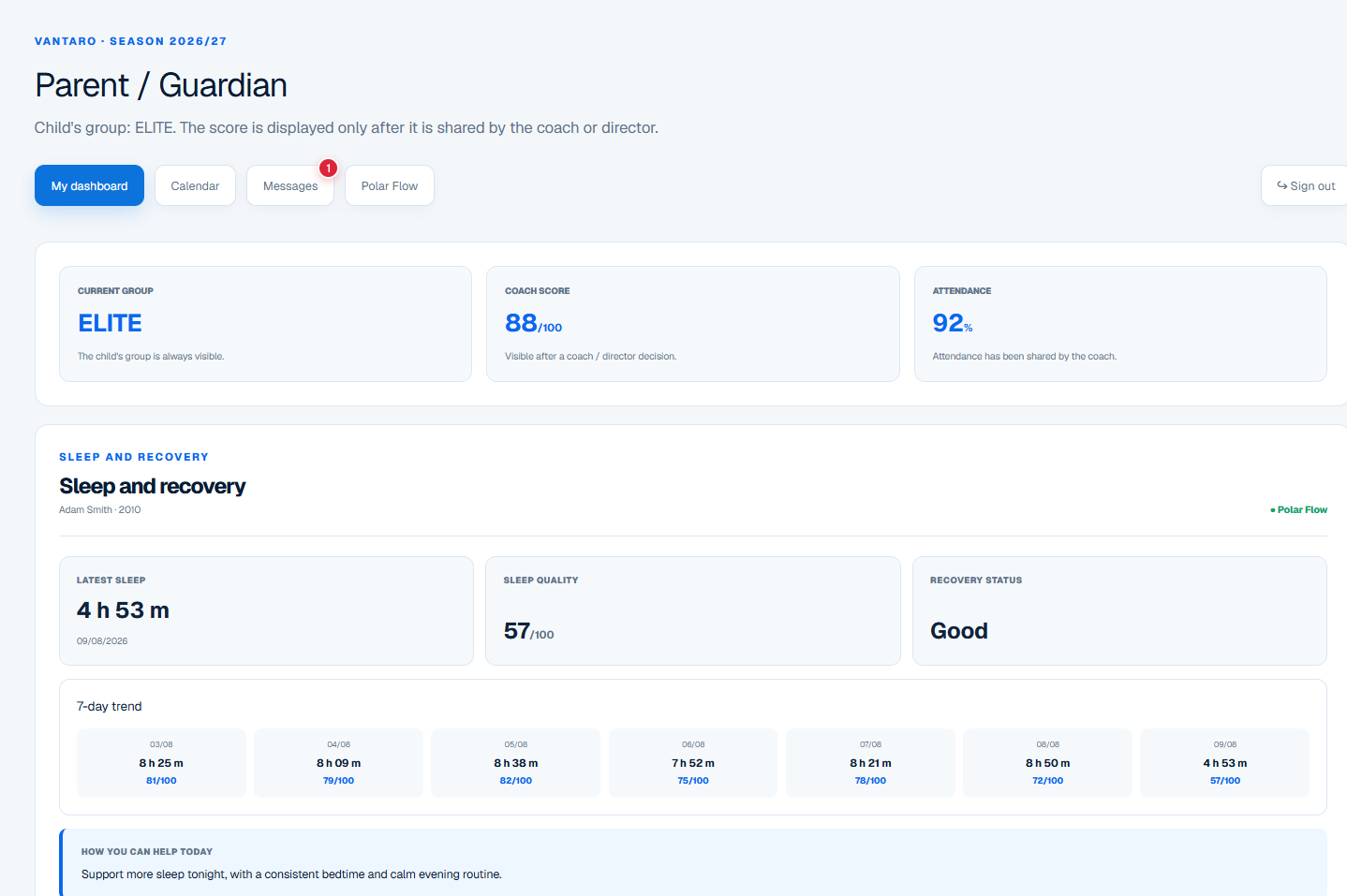
7. Parent dashboard — a clear summary

The parent sees information shared by the organisation: group, coach score, attendance, sleep and recovery.

  1. 1Confirm that the dashboard shows the correct child and group.
  2. 2Review the shared coach score and attendance.
  3. 3Check sleep and recovery with the seven-day trend.
  4. 4Read the “How you can help today” guidance and team messages.
  5. 5For wider access, contact the administrator; a parent in a club plan cannot change permissions.
Application view: 7. Parent dashboard — a clear summary: parent
VANTAROApplication view: 7. Parent dashboard — a clear summary
08 / STEP-BY-STEP USER GUIDE

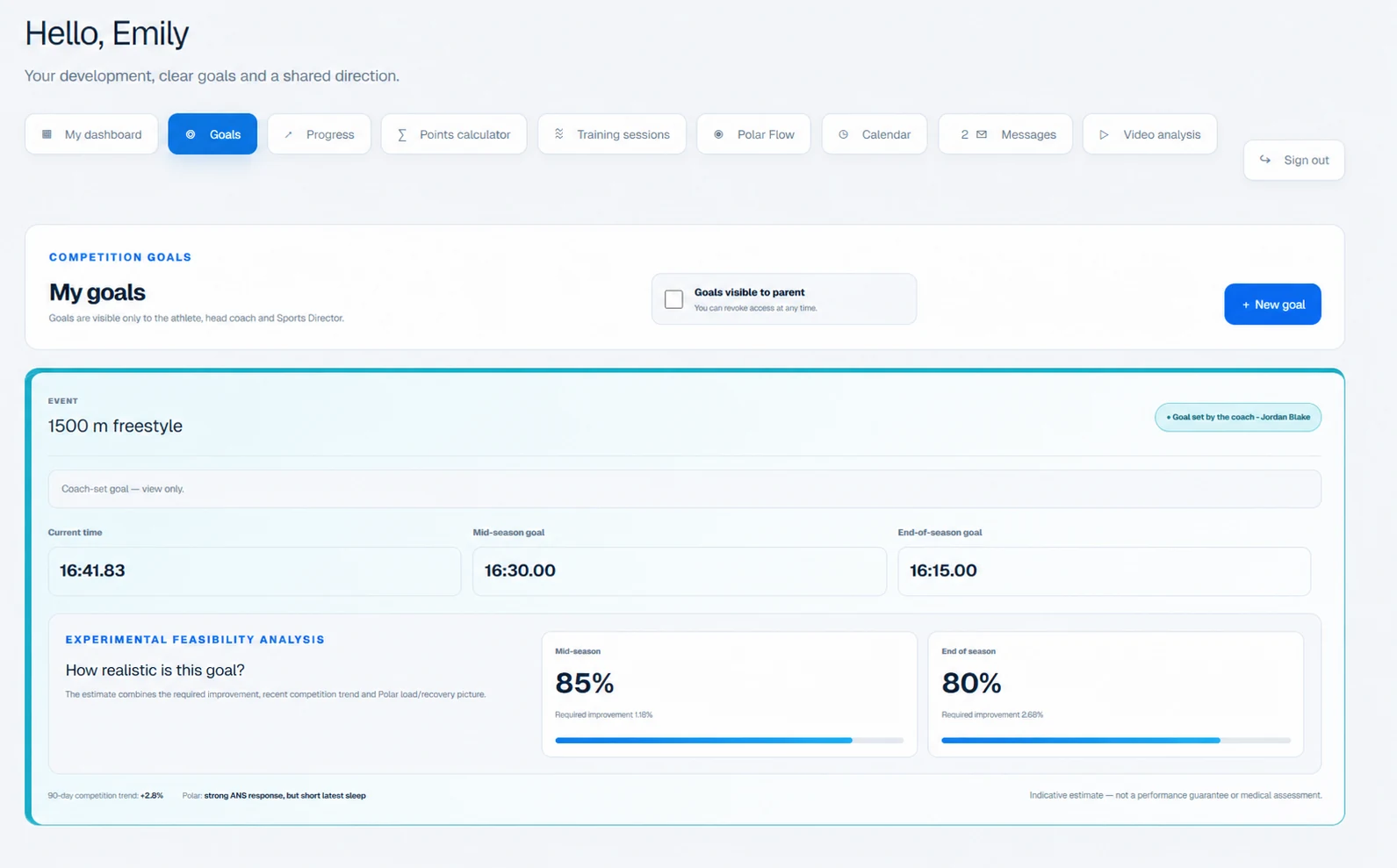
8. Goals and season planning

A goal brings the current result, expected progress and deadline together.

  1. 1Open Goals and select the correct event.
  2. 2Review the current result, mid-season target and end-of-season target.
  3. 3Treat feasibility analysis as planning support, not a guarantee.
  4. 4Choose whether the goal is visible to the parent.
  5. 5Update the goal after a key competition or plan change and record the reason.
Application view: 8. Goals and season planning: goals
VANTAROApplication view: 8. Goals and season planning
04

Detailed guidance

Guidance by role

Each person sees the information needed to support the athlete together.

Parent — club plan+
Parent — club plan: parent
VANTAROParent — club plan

The parent does not add users or administer the application. The organisation administrator grants access to the child’s profile.

  1. Accept the organisation’s invitation using the same email address.
  2. Confirm that the correct child is visible.
  3. Use the authorised calendar, goals, messages, results and summaries.
  4. Contact the administrator if information or access is missing.
Parent — Parent PRO+
Parent — Parent PRO: setup
VANTAROParent — Parent PRO

Only in Parent PRO does the parent administer the child’s environment and invite a private support team.

  1. Create the child profile and add essential sports details.
  2. Invite the private coach and selected specialists.
  3. Assign the correct role and visibility to each person.
  4. Confirm invitations and set goals together.
Athlete+
Athlete: athlete
VANTAROAthlete

The athlete sees their plan, goals, progress, readiness and explanations but does not manage other accounts.

  1. Accept the invitation.
  2. Check the daily plan and calendar.
  3. Complete wellbeing and RPE after training.
  4. Sync Polar Flow if connected.
  5. Use trends and recommendations rather than a single score.
Coach+
Coach: coach
VANTAROCoach

The coach leads assigned athletes and groups, plans work, analyses load and receives a weekly report.

  1. Accept an invitation from the organisation administrator or a Parent PRO administrator.
  2. Confirm the assigned athletes and permissions.
  3. Set goals, sessions and cycles.
  4. Review readiness, RPE, 7/28-day load and data completeness.
  5. Use the weekly report and consult relevant changes with the support team.
Specialist+
Specialist: specialist
VANTAROSpecialist

A specialist works only with assigned athletes and within the visibility granted by the administrator.

  1. Accept the invitation and verify the specialist role.
  2. Open the assigned athlete.
  3. Add an assessment, observation or recommendation.
  4. Flag relevant information for the coach within the allowed scope.
Director / organisation administrator+
Director / organisation administrator: setup
VANTARODirector / organisation administrator

In club plans, the administrator creates the structure, adds users and decides who can see an athlete’s data.

  1. Create sections and training groups.
  2. Add athletes and assign them to groups.
  3. Invite coaches, specialists and parents with the correct roles.
  4. Verify parent–child links and minor-data visibility.
  5. Monitor data completeness, alerts, reports and permission history.

Polar Flow and syncing

The VANTARO integration with Polar Flow brings training, heart rate, sleep, activity and recovery into one view. VANTARO is an independent application; the integration does not imply an official partnership with or endorsement by Polar Electro Oy.

How do I connect Polar Flow?+

Open Integrations → Polar Flow, choose Connect, sign in to Polar, approve access and return to VANTARO.

Is a Polar watch required?+

No. Manual use is possible. For richer analysis we recommend a compatible Polar device, including the screen-free Polar Loop Gen 2 band or Polar Verity Sense optical heart rate sensor.

Training or sleep is missing+

Sync the device with Polar Flow, confirm the item appears there, refresh VANTARO and check the connection status.

How do I disconnect Polar?+

Choose Disconnect in integration settings. New data will no longer be imported.

Insights and reports

VANTARO turns measurements into context; it does not replace a coach or medical professional.

Readiness, recovery and fatigue+

Available sleep, HRV, resting heart rate, load, RPE and wellbeing data are compared with the athlete’s personal baseline.

7- and 28-day load+

The short window reflects recent work; the longer window provides context and helps identify abrupt load changes.

Active and total calories+

Training calories belong to a session. Active calories cover daily activity; total calories may also include baseline energy needs, depending on Polar data.

Weekly coach report+

A structured weekly summary covers training, load, sleep, recovery and relevant changes across the group.

Is this a medical diagnosis?+

No. VANTARO supports sports decisions and communication and does not replace medical advice.

Goals, progress and calculators

Goals give data direction and make progress easier to understand.

How do I set a goal?+

Open Goals, add the event or metric, target result and date, then connect it with the training plan.

Capability analysis+

Current results, progress history, age and available time provide a planning reference, not a promise.

Rudolph calculator+

Assesses an age-related swimming result and helps track development beyond finishing time alone.

World Aquatics (FINA) points+

Compare performance across swimming events and see the score with its historical context.

?

Troubleshooting

Quick answers to common issues.

I cannot see an invitation+

Check the email address and spam folder. The invitation must match the login email.

A parent cannot see data+

Confirm the parent is linked to the correct athlete and has permission for that data.

The wrong language appears+

Use PL / EN / EL. User-entered content remains in its original language.

A chart is empty+

Check the date range, sync and data completeness. An empty chart does not automatically mean no activity.

VANTARO SUPPORT

Need more help?

Briefly describe the issue. We will reply and guide you through the next steps.

Contact usExplore demo